

Land claims are an essential feature in 7 Days to Die, allowing players to protect their bases, secure valuable structures, and establish their own territory in the game's dangerous post-apocalyptic world. By placing a Land Claim Block, players can claim an area and access certain protection features, helping them safeguard their builds and manage their settlements while surviving against zombies and other threats. For server owners, configuring land claim settings is an important part of creating a balanced multiplayer experience, whether you're hosting a private server for friends or managing a larger community. In 7 Days to Die, land claim settings can be customized to control various aspects of land claim functionality, including the number of Land Claim Blocks players can place, the size of the protected area, the distance required between claims, and other protection-related behaviors. Adjusting these options allows you to determine how much territory players can secure, reduce potential conflicts between neighboring bases, and establish rules that suit your server's playstyle. For example, a cooperative PvE server may benefit from more generous land claim limits, while a competitive or resource-focused server may require stricter restrictions to encourage players to manage their territory carefully. In this guide, we'll walk you through how to manage land claim settings on your 7 Days to Die server by accessing and editing the serverconfigmain.xml configuration file. You'll learn how to locate the relevant settings and adjust their values to match your preferred gameplay experience. Before making any changes, we recommend stopping your server and creating a backup of your existing configuration file to help prevent unintended changes or configuration issues. Once you've saved your updated settings, you can restart your server and apply your preferred land claim configuration.
Setting Up Land Claim Options
1. Log in to your Game Control Panel.
2. Before making any modifications, stop the server from running by clicking the Stop button.

3. Navigate to Configuration Files.
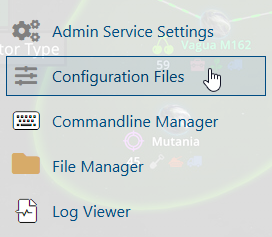
4. In the Configuration Files section, locate the serverconfigmain.xml file and click Text Editor to open and edit the file.

5. In the file, locate the <!-- Land claim options --> section, and modify its values according to your preferred server configuration.
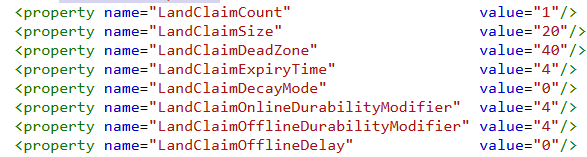
| Setting | Description |
|---|---|
LandClaimCount |
Maximum allowed claims per player. |
LandClaimSize |
Size in blocks that a land claim protects. |
LandClaimDeadZone |
Sets the distance in blocks before another land claim block can be placed. |
LandClaimExpiryTime |
Sets the number of real-world days a player can be offline before claims expire. |
LandClaimDecayMode |
Sets how quickly offline player claims expire. 0 = Slow 1= Fast. |
LandClaimOnlineDurabilityModifier |
Sets the multiplier for landclaim block hardness when a player is online. |
LandClaimOfflineDurabilityModifier |
Sets the multiplier for landclaim block hardness when a player is offline. |
LandClaimOfflineDelay |
How long it takes after a player logs out for their land claims to transition from online to offline hardness. |
6. After editing, click the Save button to apply the changes.