

This guide will show you how to Enable Whitelist Access on your Project Zomboid Server
Click here to order your Project Zomboid server with Citadel today!
Managing who can access your multiplayer world is an important part of maintaining a secure, private, and enjoyable Project Zomboid server. Whether you're hosting a server exclusively for friends, organizing a private survival community, or managing a dedicated server with a specific group of players, enabling whitelist access allows you to control who is permitted to join your game. By configuring the whitelist settings, you can limit server access to approved players and help prevent unauthorized individuals from entering your world. In Project Zomboid, a whitelist is an access control feature that restricts server entry to players who have been explicitly authorized. When whitelist enforcement is enabled, players generally need to be added to the server's whitelist before they can join. This gives server administrators greater control over their multiplayer environment and makes it easier to manage membership as new players join or existing players leave the community. Enabling whitelist access is particularly useful for private multiplayer sessions where you want to play with a trusted group without opening the server to everyone. It can also help administrators maintain an organized player base, reduce unwanted connections, and ensure that access is granted only to individuals who meet the server's requirements. However, enabling the whitelist alone may not automatically authorize existing or new players, so it's important to understand how to add approved players and manage their access correctly. In this guide, we'll walk you through how to enable whitelist access on your Project Zomboid server and configure the necessary settings to control who can join. By following these steps, you can create a more private multiplayer environment, manage your approved player list, and ensure that your server's access permissions align with your community's preferences.
Configuring Whitelist Settings
1. Log in to your Game Control Panel.
2. Before making any modifications, stop the server from running by clicking the Stop button.

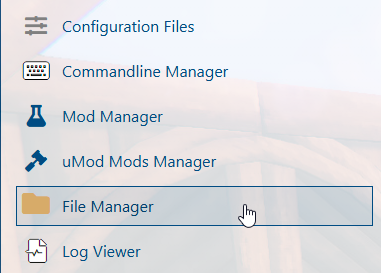
3. Navigate to the File Manager section.
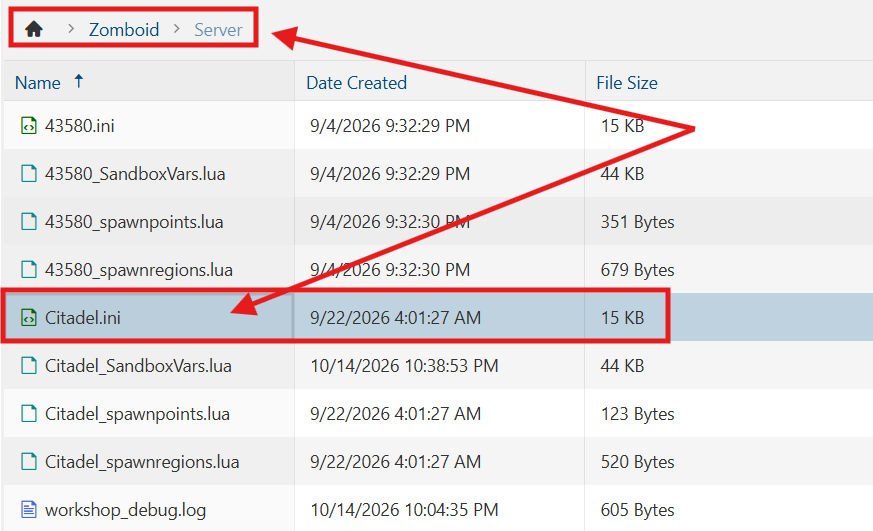
4. Navigate to the /Zomboid/Server directory and locate the [SaveName].ini file, replacing [SaveName] with the name of your server's save.
5. In the configuration file, locate the Open= line and set its value to false to restrict open access to your server.

6. After editing, click Save to apply the changes.

7. Start the server.
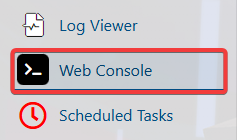
8. Navigate to the Web Console section.
9. Run the following command to add a player to the whitelist, replacing <username> and <password> with the player's desired username and password:
AddUser <username> <password>
10. Run the following command to remove a player from the whitelist, replacing <username> with the player's actual username:
RemoveUserFromWhitelist <username>
Did the above information not work for you?
Please click here to contact our support via a ticket.