

This guide will show you how to kick or Ban Players on your Project Zomboid Server
Click here to order your Project Zomboid server with Citadel today!
Managing your multiplayer community is key to keeping a safe, enjoyable, and well-organized Project Zomboid server. As a server administrator, you may occasionally need to remove disruptive players, address rule violations, or prevent certain individuals from accessing your server. Project Zomboid provides player management commands that allow administrators to kick or ban players when necessary, helping maintain a fair and enjoyable environment for everyone. Kicking and banning players serve different purposes. Kicking a player temporarily disconnects them from the server without necessarily preventing them from reconnecting. This is useful for minor rule violations, disruptive behavior, or when a player needs to be removed from the current session. Banning a player, on the other hand, restricts their ability to rejoin the server, making it a more appropriate option for repeated violations, persistent disruption, or serious breaches of your server rules. Understanding how these options work can help you manage your server more effectively while ensuring that disciplinary actions are appropriate for each situation. Whether you're hosting a private server for friends or managing a larger multiplayer community, knowing how to remove unwanted players and restrict their access is an essential administrative skill. In this guide, we'll walk you through how to kick or ban players on your Project Zomboid server using the available administrative tools and commands. By following these instructions, you'll be able to manage player access, enforce your server rules, and maintain a better multiplayer experience for your community.
Managing Kicks and Bans on Your Project Zomboid Server
1. Log in to your Game Control Panel.
2. Navigate to the Web Console section.
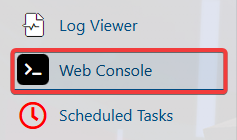
3. To kick a player from your server, execute the following command, replacing <Username> with the player's actual username:
kickuser <Username>
To ban a player from your server, execute either of the following commands, replacing the placeholder with the player's actual username or SteamID64:
banuser <Username> – Bans a player by their username.
banid <SteamID64> – Bans a player using their SteamID64.
To unban a player and restore their access to the server, execute either of the following commands, replacing the placeholder with the player's actual username or SteamID64:
unbanuser <Username> – Removes a ban associated with the player's username.
unbanid <SteamID64> – Removes a ban associated with the player's SteamID64.
Managing Kicks and Bans In-Game
1. Join your server as an administrator.
2. Press ESC on your keyboard to open the in-game menu, then select Players.
3. To kick a player, select the desired player from the list, then click Kick to remove them from the server.
4. To ban a player, select the desired player from the list, then click Ban to prevent them from rejoining the server.
Did the above information not work for you?
Please click here to contact our support via a ticket.